
Internet & Wi-Fi support
Video how-tos
How to set up your Wi-Fi System
How to Set Up Your Wi-Fi and App
An Introduction to the Main Dashboard of the App
An Introduction to Quick Links
An introduction to People
MyPrioritiesIQ Modes
Getting to Know Tiles and Announcements
Learn about Notifications
Performing a Speed Test using the App
Learn How to Enable and Disable Services Using the App
Internet FAQ
Residential internet
Residential Wi-Fi
CommandIQ® 3.0
CommandIQ® 3.0 is the latest version of the easy-to-use mobile app designed to help you take full control of your home Wi-Fi experience. Whether you’re indoors or outdoors, CommandIQ puts powerful tools at your fingertips to manage, personalize, and secure your network.
Need help? Visit the Help Center in the app or contact DFT directly for personalized assistance.
Guides & tech tips
Best security practices for internet safety
This guide is here to give you some basic ideas to help protect yourself online. This guide is not meant to be comprehensive by any means as security issues change rapidly in the computer world, and all of the already existing security issues cannot be covered in a single document. It is meant to provide basic guidelines to help users keep themselves and their computers safe in common situations where users’ security could be compromised. We hope you find this information useful and helpful to improving your experience while online. Using this guide does not guarantee that your computer will not get infected with malware, nor does it guarantee that your identity will not be stolen.
It becomes more and more important as each day passes to have a good anti-virus program running on your computer. It’s one of the easiest and fastest things that a user can do to help prevent their computer from being compromised by viruses, trojan horses, worms, and all the other types of infections crawling around the Internet.
Also with the addition of a lot of legitimate free anti-virus programs available, cost is less of an issue in making the decision to put anti-virus software on the computer. There’s a lot of programs out there to choose from, and making a decision on which one to use is not always easy. Below, we have made recommendations for a free anti-virus program, and a paid one. We currently like these two programs the best, and find that they do the best job of protecting a computer from infection, not harassing the user, and have the least impact on the performance of the computer.
Windows Update is crucial part of keeping your system up to date, and to minimize the risks of your computer being vulnerable to infection. If you don’t have automatic updates turned on in Windows then we would recommend that you turn it on, or setup a schedule where you manually check for updates once every month.
Using a web browser that’s out of date can be just as dangerous as not keeping your anti-virus, or Windows Updates up to date. Use a modern web browser that has the latest updates and security fixes to reduce the risk of your web browser being compromised by an infection.
While surfing the Internet, one of the easiest ways for your computer to get infected with malware are by the advertisements nested in most webpages. We would recommend that you use an Ad Blocker to prevent the ads from being loaded, which reduces the risk of getting an infection from one. It also has the side affect of improving the appearance of many pages that are plastered with ads.
Many malware infections are spread via e-mail attachments. As a general rule, don’t open an attachment regardless of who sent it to you. You can just as easily get a malicious e-mail from someone you know as you could a total stranger.
Now clearly attachments are very useful for getting files from one individual to another, and never opening an e-mail attachment ever would be just as silly never riding a bicycle because there’s a risk that you could fall off. We recommend that if you get an e-mail with an attachment, that you use some means to verify that the attachment is legitimate.
For example:
You have a meeting with a co-worker, and he tells you that he is going to e-mail you a copy of the next year’s budget. 20 minutes later you receive an e-mail from that individual with an excel spreadsheet attachment and the attachment is called New_Budget.xls. Clearly you can open this attachment because the co-worker verified that he was going to send you an e-mail with budget information.
Another example:
A family friend sends you an e-mail with the subject “Look how ridiculous you look in this video”, and it has an attachment that’s called crazy_party.wmv.exe. Regardless of whether you went to a crazy party recently or not, you don’t want to open this attachment. Instead, contact the family friend first. Have them verify that they sent you an e-mail with a video. More often than not, you will find that your family friend did not send you a video, and that their computer is infected with a virus that is trying to spread to all their contacts.
Additionally, the name of the file (crazy_party.wmv.exe) has .exe as the file extension. When .exe is at the end of a file, that file is a program, and not a video. So, if you receive an e-mail, and the file says .exe at the end of it, remember that file is a program, and not a video, or picture, or document.
Another good practice to follow:
If you feel you need to see the contents of an attachment and cannot verify it with the sender, then don’t open the attachment. Instead, save the attachment to your desktop, and then scan the attachment with your anti-virus program. If your anti-virus program says it’s clean, then you are most likely safe to open the attachment.
Make sure that you’re at the site you think you’re at. If you’re suspicious that you are at a malicious website, shopping online, checking web based e-mail, or doing online banking, then check your address bar and make sure that you’re at the website you think you’re at. Often times malicious websites will attempt to look like legitimate websites, and many times they look pretty convincing, but if you check the address bar you can usually see whether the site is legitimate or not.
For Example:
If you’re shopping at Amazon.com, when you look at your address bar, you’ll see something that looks like this:
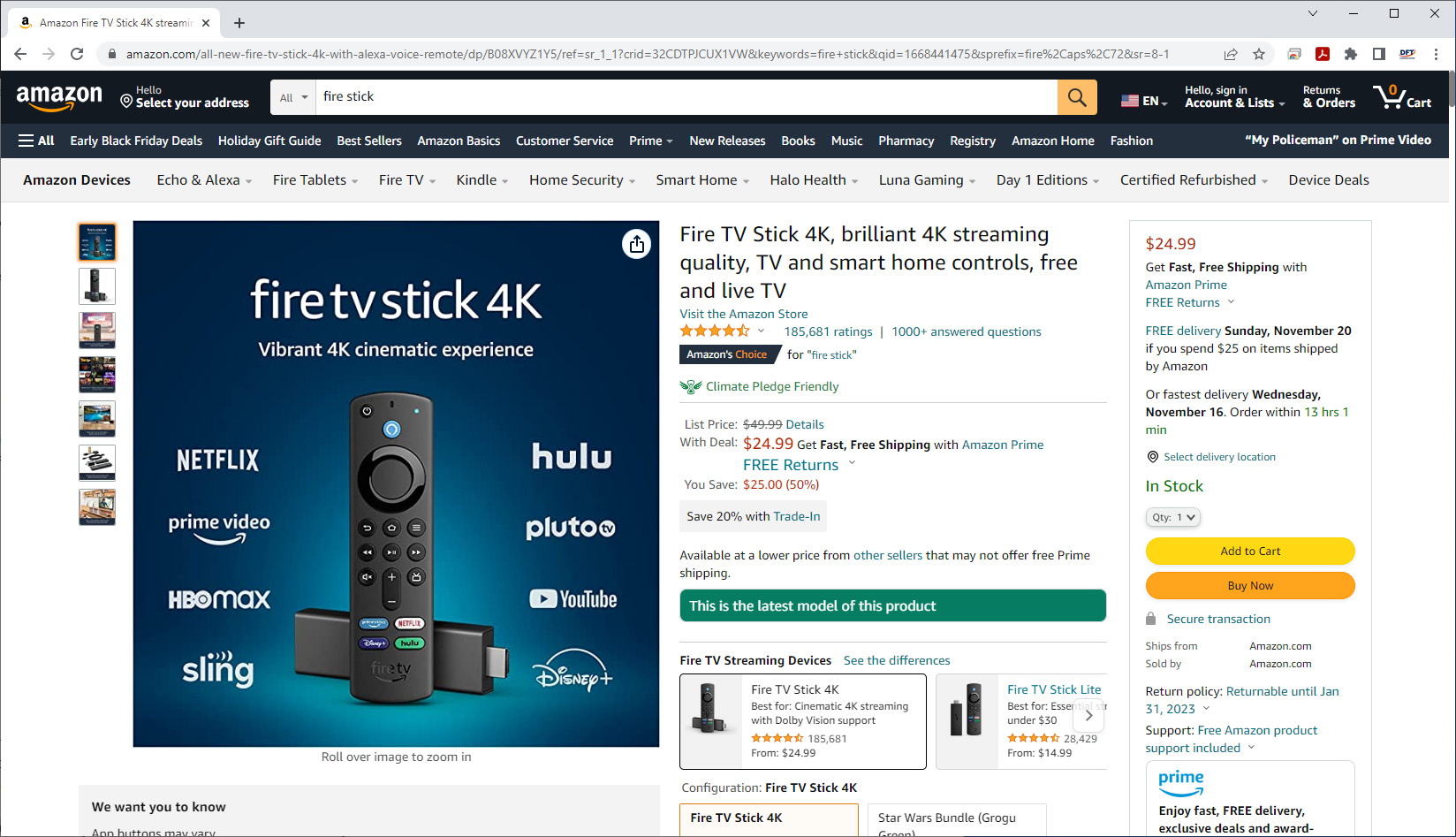
You’ll notice that at the beginning of the address, it shows http://www.amazon.com/ This is an indicator that you are at the Amazon website because amazon.com appears as the actual .com address that you have visited.
Now take a look at this address:
http://www.amazon.xdealsx.com/Apple-MacBook-MC371LL-15-4-Inch-Laptop/dp/B003G2ZJTG/ref=sr_1_4?s=pc&ie=UTF8&qid=1297284659&sr=1-4
You’ll notice in this address that http://www.amazon.xdealsx.com/ appears at the beginning of the address. In this case, you are not actually at amazon.com. Instead you are at xdealsx.com which is not amazon.com, and in this example xdealsx.com would be a malicious website trying to hijack your amazon.com account.
As a note, xdealsx.com is not a real website as of this writing. We only used that name as an example of what a malicious link in your address bar could look like. So, if you’re doing any business online, please check your address bar as a way to verify that you’re at the site that you believe you should be at. It’s one more way that you can reduce the risk of an infection, or identity theft.
Dial-up access numbers
Dial-up access numbers are specific telephone numbers that a computer’s modem dials to connect to your Internet Service Provider (ISP). They link a home or office to your ISP’s servers, allowing data to travel over standard telephone lines.
Local Numbers:
Fredonia: 716.679.4800
Mayville: 716.753.7455
Salamanca: 716.244.9199
Westfield: 716.326.7455
Jamestown: 716.338.0101
Olean: 716.543.4199
Shinglehouse: 814.697.7900
Forestville: 716.965.6100
Contact support
Can’t find what you’re looking for? Give us a call or fill out the form below!
Request support
"*" indicates required fields